Blog
Configuring Proofpoint Advanced Antispam: Step-by-Step Guide

In the current digital environment, protecting an organisation's email infrastructure from spam and malicious content is essential. Proofpoint delivers a sophisticated antispam solution tailored to defend businesses against such threats. This guide offers a comprehensive, step-by-step overview of configuring Proofpoint's advanced antispam functionalities, including email tagging, URL Defense, and anti-spoofing mechanism, to help ensure robust email security for your organisation. As a leading provider in cybersecurity, Proofpoint specialises in email protection technologies. Its advanced antispam features are engineered to identify and block unsolicited or potentially harmful emails, thereby helping organisations maintain secure and efficient communications.
ACCESSING THE PROOFPOINT INTERFACE
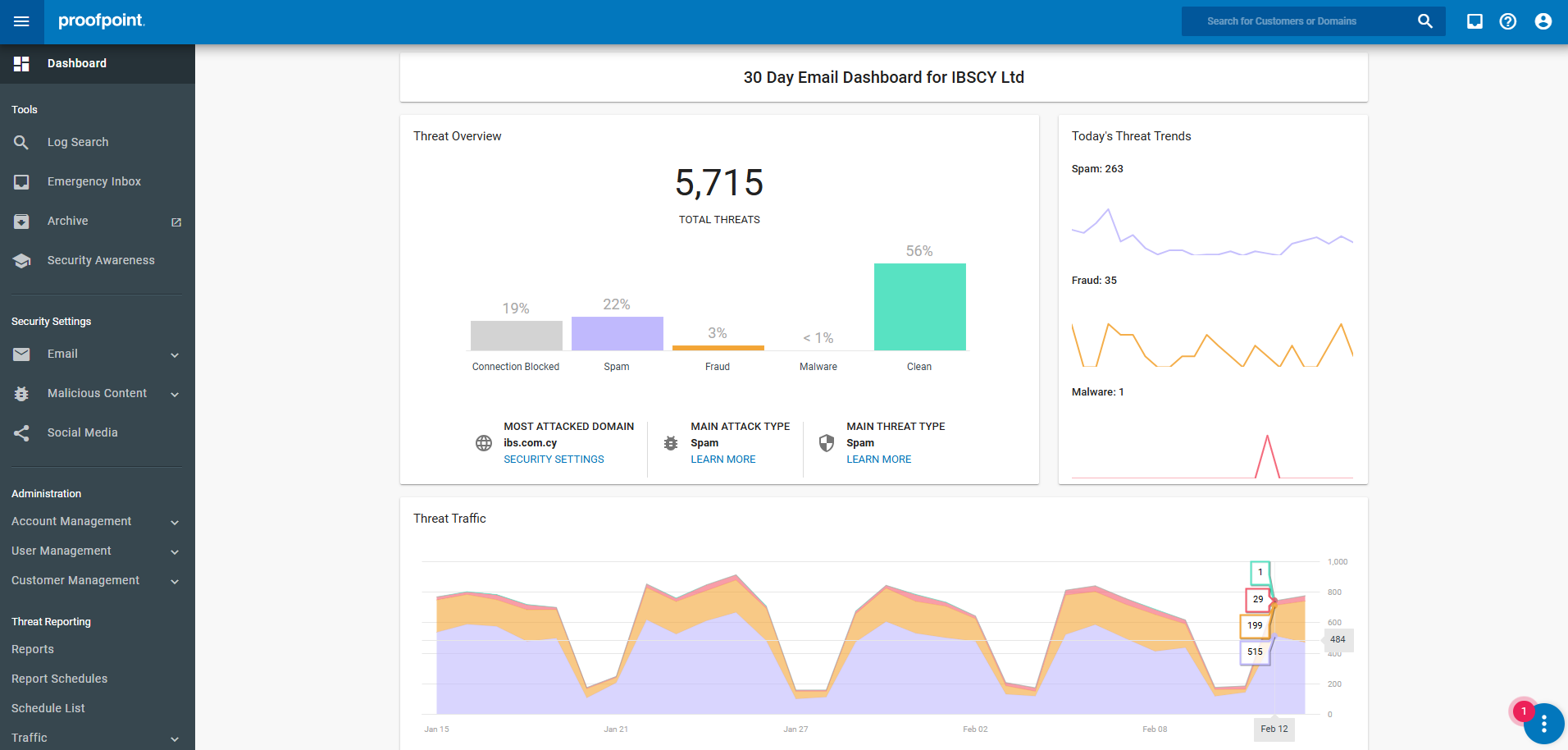
To begin configuring Proofpoint's antispam settings:
- Log in to your Proofpoint administrative console using your credentials.
- Navigate to the Security Settings section.
CONFIGURING SPAM DETECTION SETTINGS
Within the Security Settings:
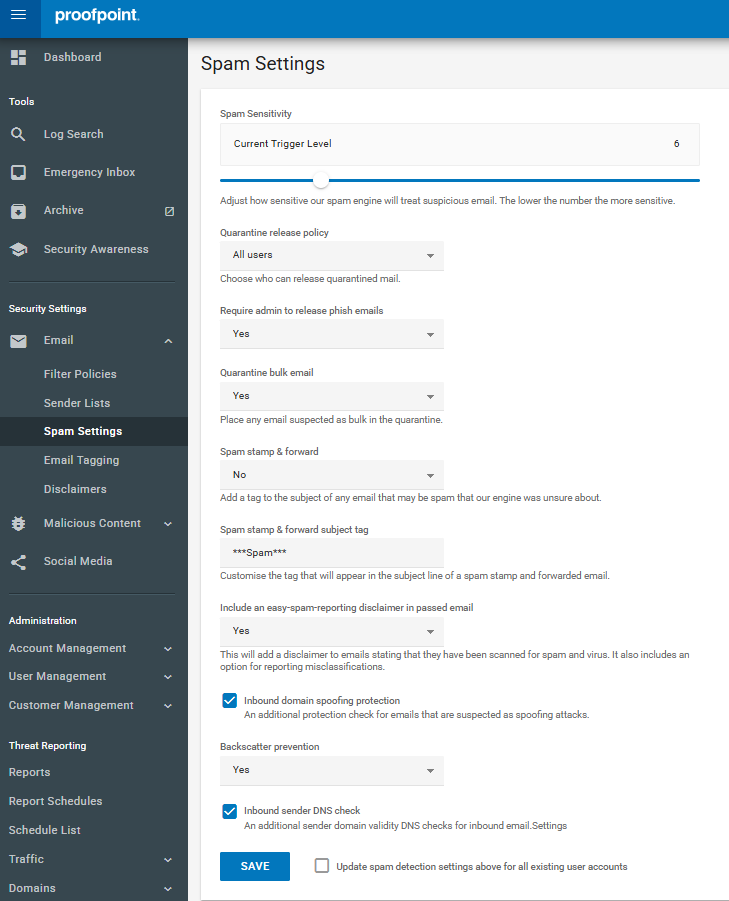
- Select Email and then Spam Settings.
- Here, you can adjust various parameters to fine-tune spam detection according to your organisation's needs.
ADJUSTING SPAM SENSITIVITY LEVELS
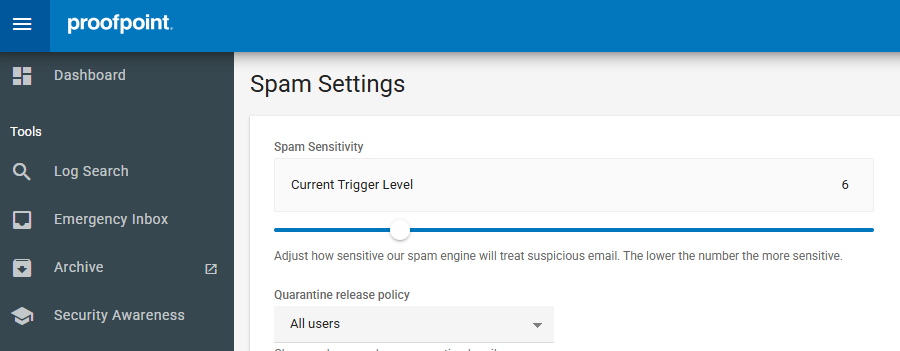
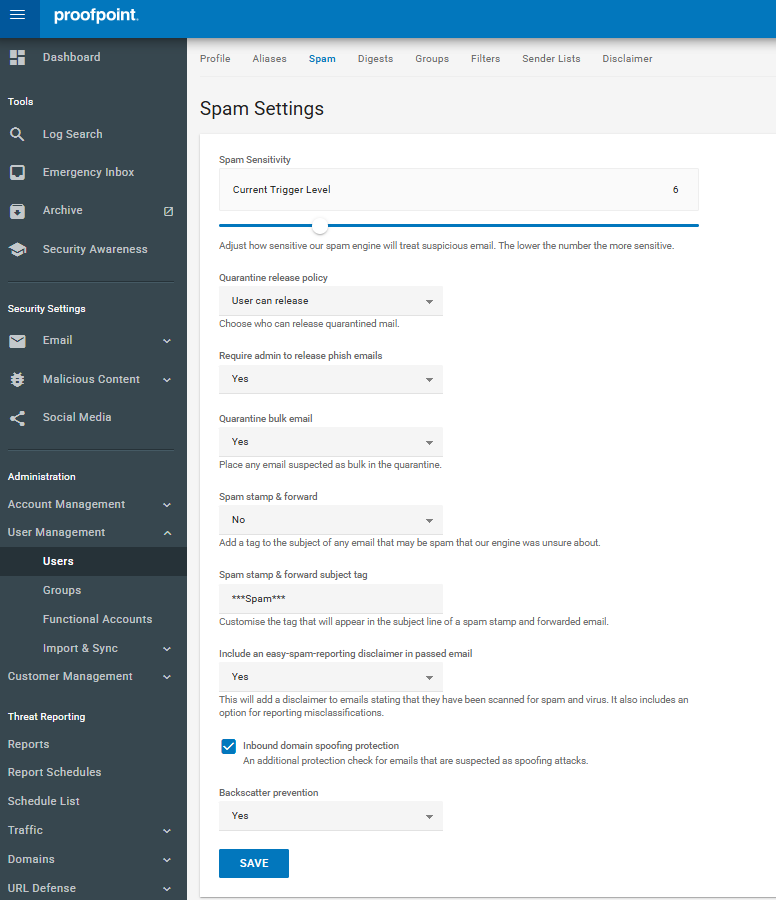
Proofpoint allows administrators to set the sensitivity of spam detection:
- Locate the Spam Sensitivity slider.
- Adjust the slider to the desired level:
- Very Strict: Scores 2-3
- Strict: Scores 4-5
- Standard: Scores: 6-8
- Loose: Scores 9-14
- Very Loose: Scores 15-22
Note: A stricter setting may result in more emails being marked as spam, while a looser setting may allow more emails through.
IMPLEMENTING EMAIL TAGGING
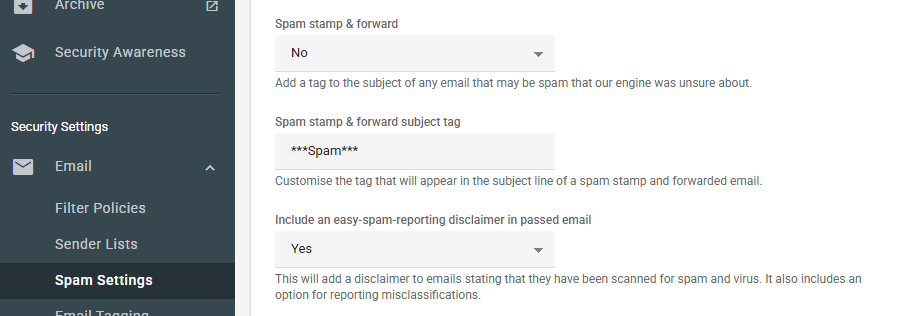
Email tagging allows administrators to mark emails that are identified as spam or suspicious with specific tags in the subject line, aiding users in recognizing potential threats.
- In the Spam Settings menu, find the Spam stamp & forward option.
- Choose from the following:
- No: Quarantine spam emails.
- All: Deliver all emails but tag spam with a specified subject prefix.
- Partial: Quarantine high-confidence spam; deliver lower confidence spam with a tag.
- Set the Spam stamp & forward subject tag to your preferred text (e.g., "***SPAM***").
ENABLING URL DEFENSE
URL Defense protects users by rewriting URLs in incoming emails to prevent access to malicious websites.
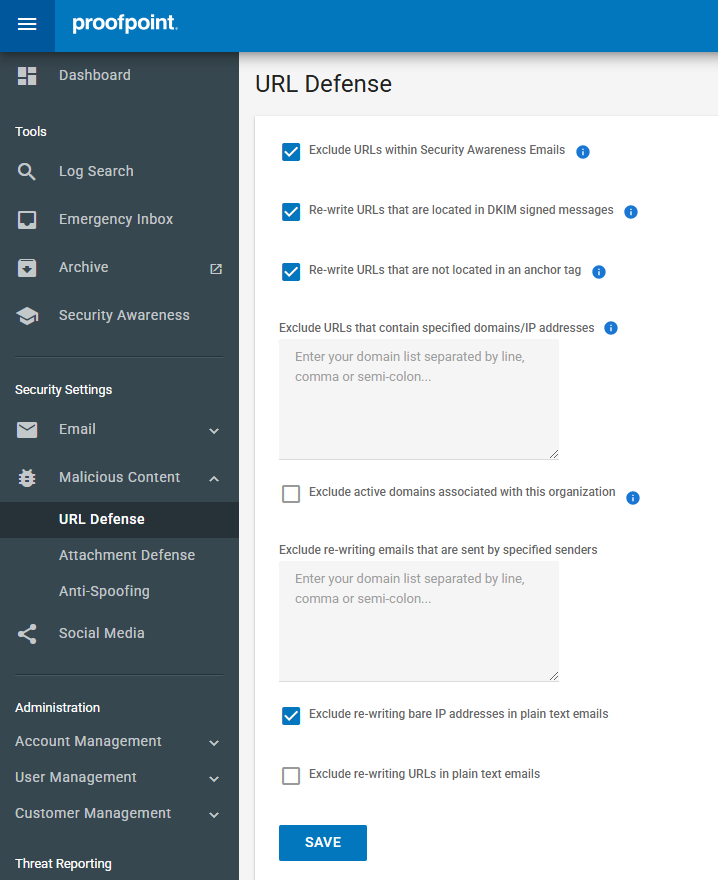
- Navigate to Security Settings > Malicious Content > URL Defense.
- Enable the feature by checking the appropriate bos.
- Configure the following options as needed:
- Exclude URLs within Security Awareness Emails: This ensures that users interact with phishing simulations as intended, rather than being redirected through Proofpoint's security filter.
- Re-write URLs that are located in DKIM signed messages: With this setting enabled, Proofpoint rewrites URLs in DKIM-signed emails to ensure protection, regardess of authentication.
- Re-write URLs that are not located in an anchor tag: Enabling this setting ensures Proofpoint rewrites URLs even if they are not embedded in a hyperlink, protecting against plain-text phishing attempts.
- Exclude URLs that contain specified domains/ IP addresses: Useful for internal links or trusted partners, reducing unnecessary filtering.
- Exclude active domains associated with this organisation: Disabling this ensures all URLs, including internal links, are scanned to prevent internal threats.
- Exclude re-writing emails that are sent by specified senders: This allows specific email senders (domains) to be exempt from URL rewriting.
- Exclude re-writing bare IP addresses in plain text emails: If enabled, Proofpoint does not rewrite plain IP addresses, reducing false positives for IT-related emails.
- Exclude re-writing URLs in plain text emails: Disabling this ensures that even plain-text emails have their URLs rewritten, providing full protection.
- Click Save to apply the settings.
SETTING UP ANTI-SPOOFING MEASURES
To protect against emails that appear to come from your own domain or trusted external domains:
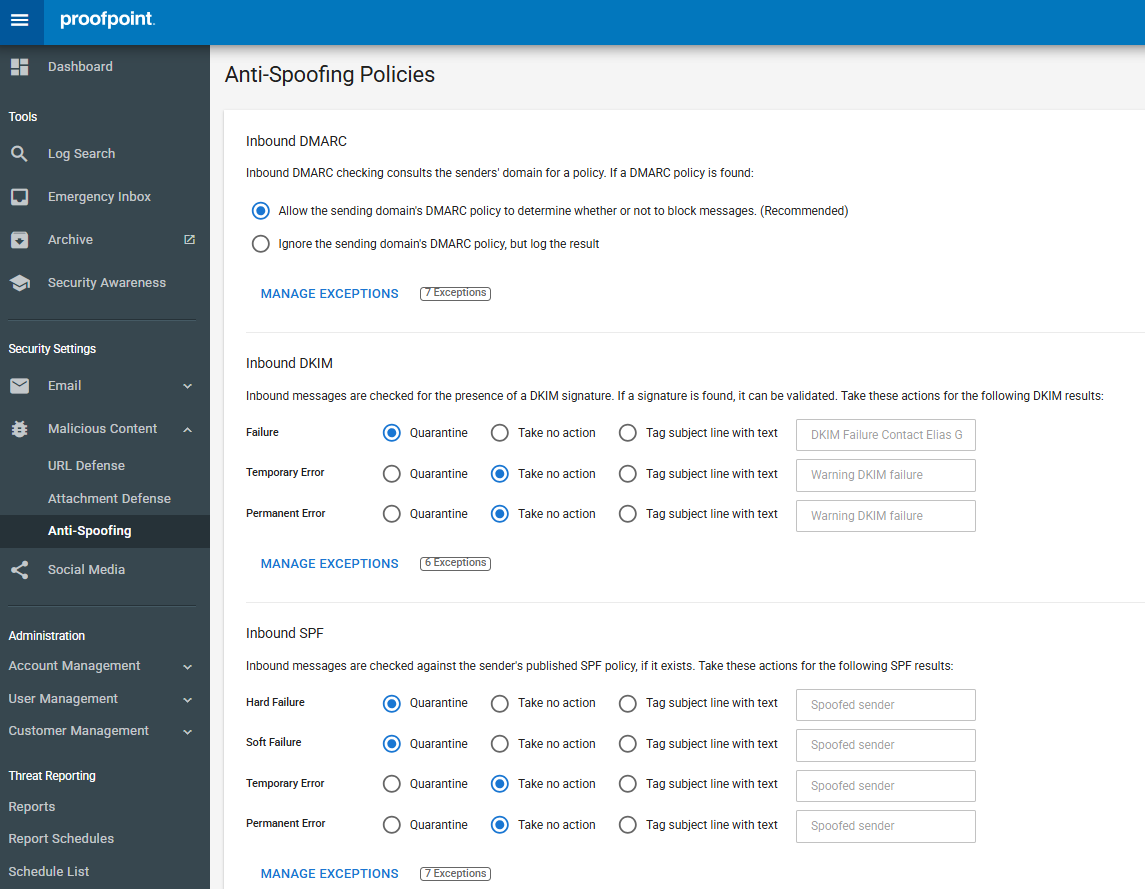
- Navigate to Security Settings> Malicious Content> Anti-Spoofing.
- Enable the Anti-Spoofing Policies feature.
- Configure the following policies:
- Inbound DMARC: Choose to allow the sending domain's DMARC policy to determine whether to block messages or to ignore the policy but log the result.
- Inbound DKIM: Set actions fro messages that fail DKIM checks, encounter temporary errors, or have permanent errors.
- Inbound SPF: Set actions for messages that fail SPF checks, encounter temporary errors, or have permanent errors.
- For each policy, you can choose actions such as:
- Quarantine: Prevent the message from being delivered to its intented recipient.
- Take no action: Allow the message to continue to be processed.
- Tag subject line with text: Prepend specified text to the message's subject line.
- Click Save to apply the settings.
MANAGING USER-SPECIFIC SPAM SETTINGS
Individual users may have unique spam filtering needs:
- Navigate to the Users section.
- Select a user and go to their Spam Settings.
- Adjust settings such as spam sensitivity and quarantne options to suit their requirements.
CONCLUSION
Bymeticulously configuring Proofpoint's advanced antispam settings, including email tagging, URL Defense, and anti-spoofing measures, your organisation can significantly reduce the risk of spam and malicious emails infiltrating your communication channels. Regularly reviewing and adjusting these settings ensures that your email security remains robust and effective.
For organisations in Cyprus and Greece seeking expert assistance with Proofoint configurations, partnering with certified professionals can provide tailored solutions to meet specific security needs.
Disclaimer: This guide is intended to provide a general overview. The actual steps and features may vary based on your specifc environments. It's recommended to refer to your official Proofpoint Partner and seek assistance from qualified professionals when necessary.
Sources:
help.proofpoint.com
 |
Marios Tsimaris, is a Senior Engineer at IBSCY Ltd. He holds a BSc in Computer Engineering from Frederick University. He has been a dedicated part of the IBSCY team since 2019. |
